Move from RapidWeaver Classic to Elements

Dan Counsell · Founder of Realmac SoftwareUpdated
We’ve made RapidWeaver, a website builder for Mac, since 2004. Each guide works with any tool, then shows how in RapidWeaver Elements.
RapidWeaver Classic and RapidWeaver Elements are separate apps. Your Classic site keeps working while you build the new one, so there’s no deadline and no risk to the live site. Classic vs Elements explains how the two differ.
Before you start
- Save a copy of your Classic project. Work on the copy.
- Turn any partials back into ordinary stacks in the copy. The importer doesn’t read partials yet; in Elements you’ll use Globals for shared content instead.
- Note your page addresses. Your sitemap or a list of pages is enough.
- Check the upgrade offer for Classic owners on our upgrade page.
What the Classic Project Importer brings across
The importer is experimental. It saves you copying, but it isn’t a one-click move.
| Brought across | Notes |
|---|---|
| Pages and folders | File names, page names, browser titles |
| SEO and meta | Descriptions, robots settings |
| Site settings | Name, site address, logo, favicons |
| Resources | Including Stacks page resources, with duplicates removed |
| Publishing destinations | Your host’s details |
| Styled Text pages | Text into Typography components, images into Image components |
| HTML and Markdown pages | As code pages |
| Photo Album pages | Photos into a Resources folder, with a Photo Gallery page |
| Stacks pages | Text and images from popular stacks; other stacks become named Containers |
What doesn’t come across: your theme’s design, and the styling of stacks. You rebuild the look in Elements.
How to move your site
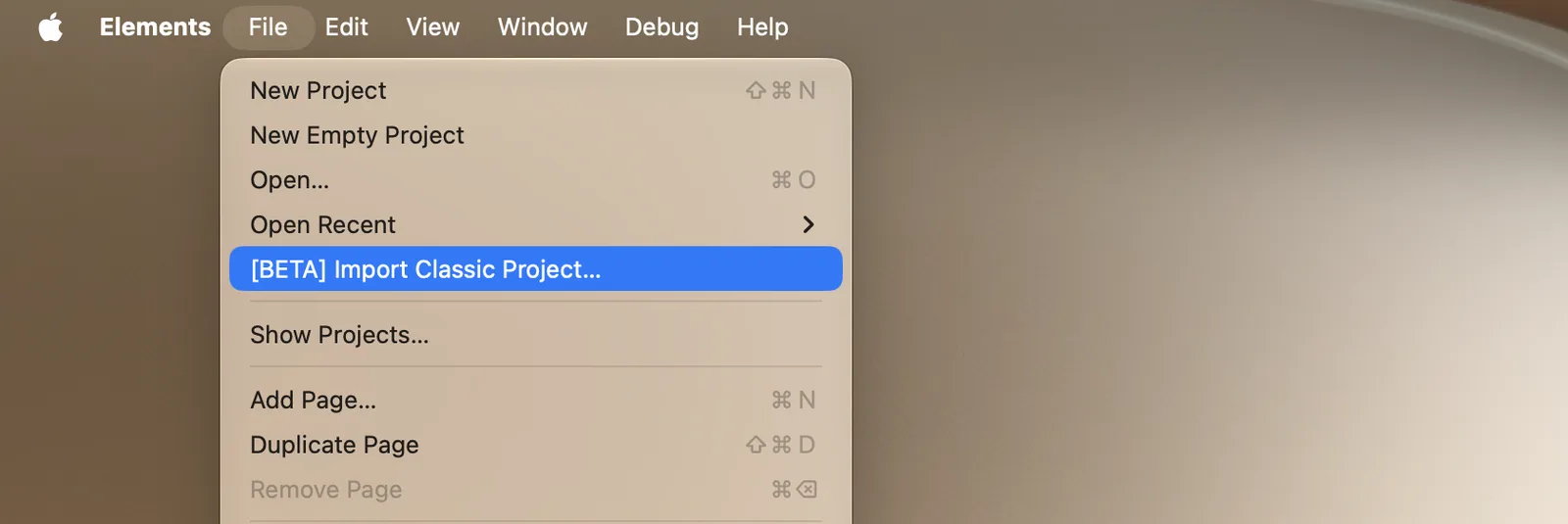
- Open RapidWeaver Elements and choose File › Import Classic Project….
- Pick the copy of your Classic project.
- Set your colours and fonts once in the Theme Studio.
- Build a header and footer as Globals, so they update on every page.
- Rebuild each page’s layout with components, or start from a template section. The imported text and images are there to use.
- Move blog posts into the CMS if you had a blog.
- Preview everything, on a phone too.
- Publish to your existing host.
Keep your addresses and rankings
Because the importer keeps your file and folder names, most page addresses can stay the same. Where one changes, for example from page.html to page/, add a 301 redirect. See .htaccess redirects and the website redesign checklist.
Questions about moving from Classic
Do I have to move to RapidWeaver Elements?
No. RapidWeaver Classic is still sold and updated. Move when you want what Elements offers, such as a built-in CMS, Tailwind CSS and AI tools.
Do my Classic themes and plugins work in Elements?
No. Elements has its own components, starter projects and add-ons. Your content comes across; the theme and plugins don’t.
Can I run Classic and Elements on the same Mac?
Yes. They’re separate apps, and you can keep both installed while you move.