How to build a website with Claude

Dan Counsell · Founder of Realmac SoftwareUpdated
We’ve made RapidWeaver, a website builder for Mac, since 2004. Each guide works with any tool, then shows how in RapidWeaver Elements.
Claude writes clean HTML and good copy. Ask it in a chat and you’ll get a page of code. Connect it to a website builder and you get something more useful: Claude building pages in a real project, which you can see, change and publish.
What is MCP?
MCP, the Model Context Protocol, is a standard way for an AI tool to use another app. The app offers a set of tools, such as “list the pages” or “add a component”, and the AI calls them when it needs to. RapidWeaver Elements has an MCP server built in, so Claude can work on the project you have open.
You don’t need an API key for this. Claude uses your normal Claude plan.
Connect Claude Desktop to RapidWeaver Elements
- Open RapidWeaver Elements and open your project.
- Choose Preferences > AI > MCP Server and turn on Allow AI tools to interact with Elements.
- In the Claude Desktop section, click Install… and follow the prompts.
- Open Claude Desktop and ask it to look at your Elements project.
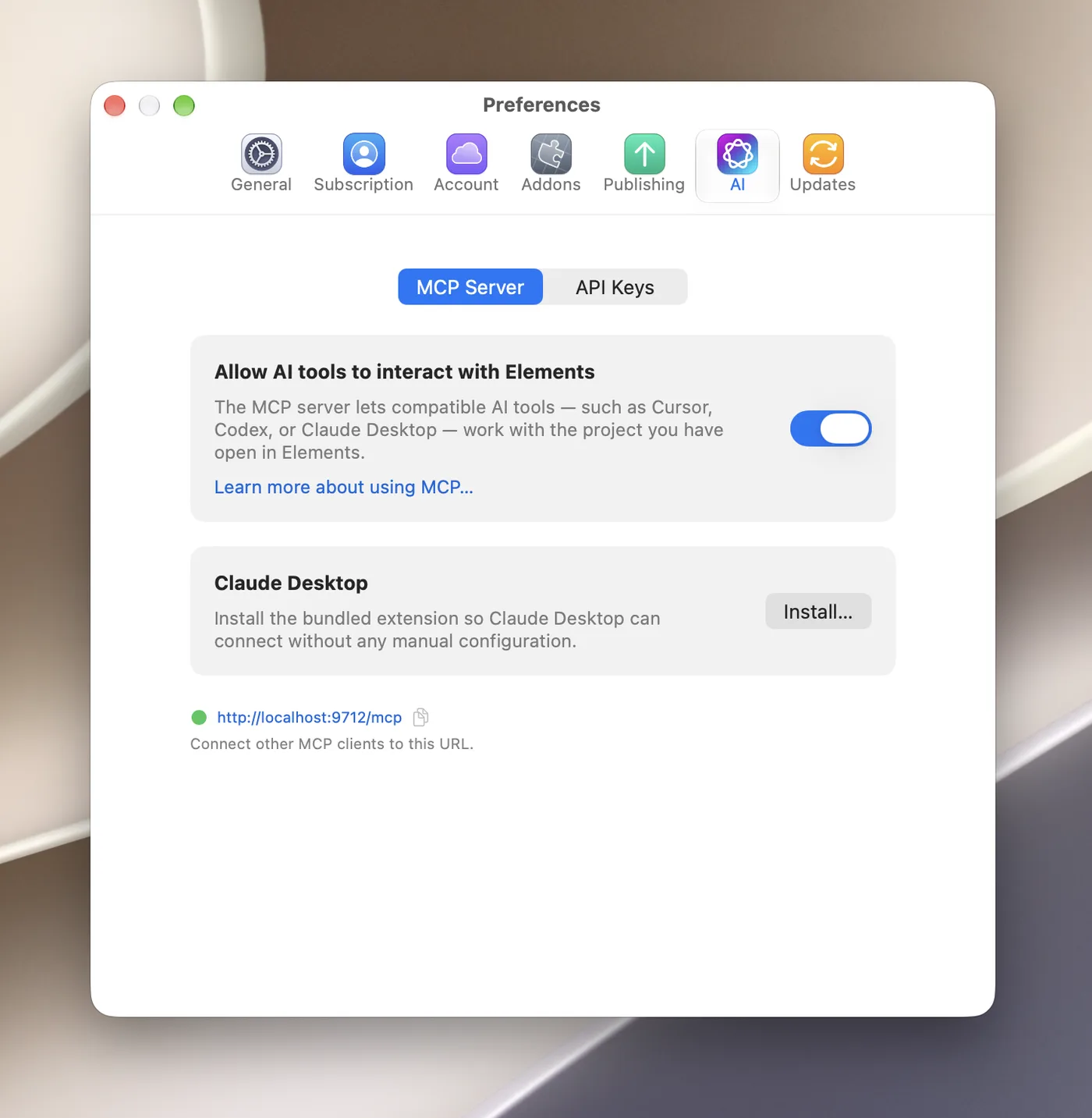
Keep Elements running with the project open while you work. If Claude can’t connect, check that the switch is on and the project is open, then restart the connection in Claude.
Use Claude Code or Cursor instead
If you work in Claude Code, Cursor or another coding tool, copy the connection URL from Preferences > AI > MCP Server (it looks like http://localhost:9712/mcp) and add it to the tool’s MCP settings. This is handy when the site sits next to other files, such as a brief, a folder of photos or a product catalogue, that you want the AI to use.
Prompts that work well
Read the project and AI Memory, then build a Contact page that matches the rest of the site.
Build a reusable testimonial component with controls for the quote, name, role and photo, and add it below the services section.
Review every page for inconsistent headings, spacing and button styles, and fix them.
Write a blog post about our autumn menu and add it to the CMS as a draft.
Claude records useful decisions in Elements’ AI Memory, such as your tone of voice or colour choices, and reads them next time. Ask it to update the memory when you change your mind.
What to check before you publish
Read every word Claude wrote, check facts like prices and opening hours, and make sure every image has alt text. Then publish from Project Settings > Publishing, or ask Claude to publish for you.
Questions about building a website with Claude
Can Claude make a website for free?
Claude’s free plan may limit how much you can do. Claude Desktop’s MCP connection works with your Claude plan, and RapidWeaver Elements starts at $99 with a year of updates. You’ll also need hosting and a domain.
Can Claude publish my website?
Yes. Through the Elements MCP server, Claude can publish the site to the destination you’ve set up in Elements.
Can Claude generate images for my website?
Not through MCP. The built-in Elements AI Assistant can generate images if you add an OpenAI API key in Elements.