How to add a watermark to photos on a Mac

Dan Counsell · Founder of Realmac SoftwareUpdated
We’ve made Squash, an image compressor for Mac, since 2016, so we show the free way first.
A watermark is a name or logo laid over a photo, so people know where it came from. Photographers use them on proofs and portfolios, and shops use them on product shots.
Watermark one photo with Preview
Preview’s Markup tools can add text or a logo by hand.
- Open the photo in Preview and click the Markup button in the toolbar.
- For text: click the Text button, type your name, then use the Text Style button to set the font, size and colour.
- For a logo: open your logo (a PNG with a transparent background works best), copy it, then paste it onto the photo.
- Drag the watermark into place and resize it.
- Choose File > Export to save a watermarked copy and keep the original.
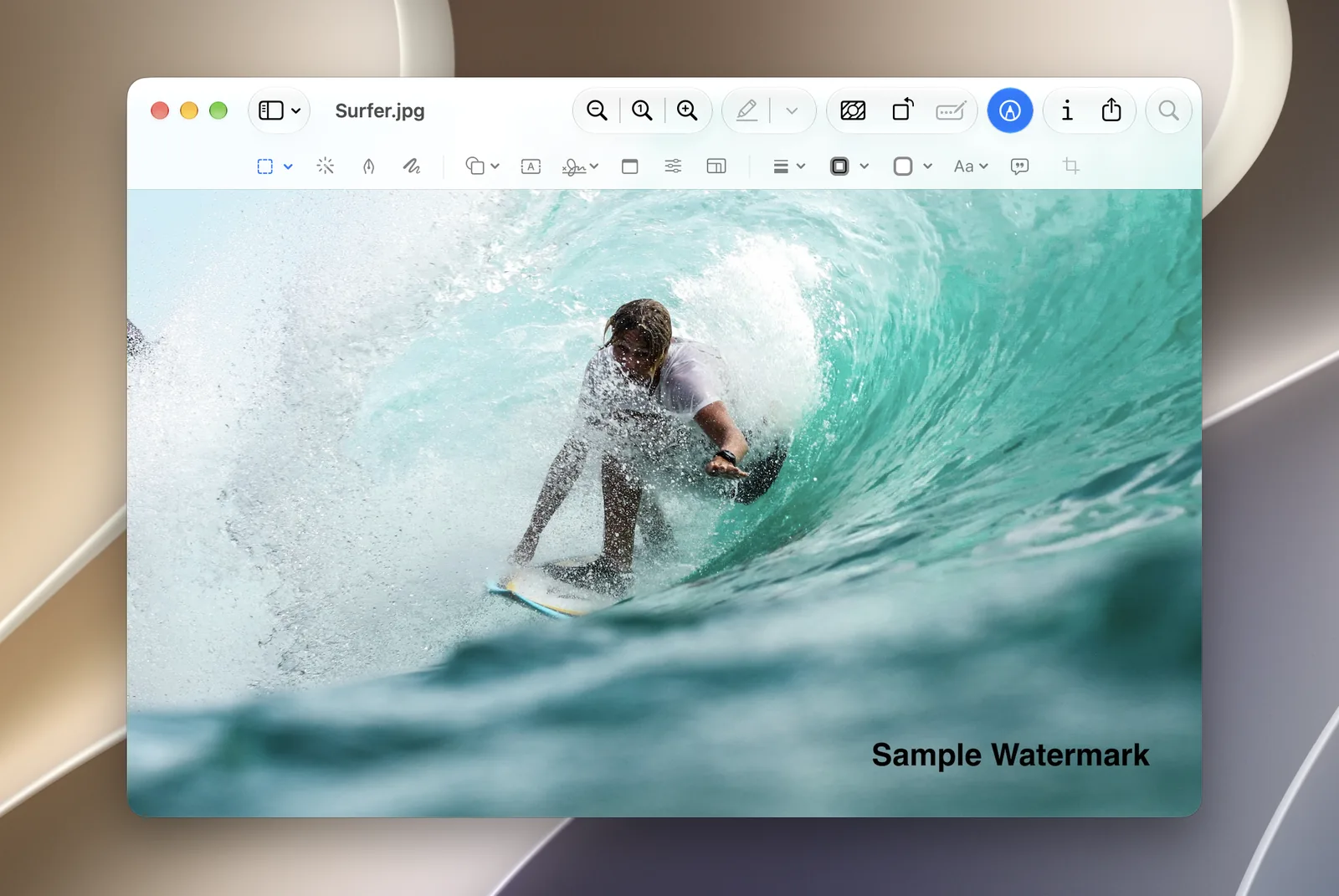
It works, but you place it by eye on every photo, and you can’t set its opacity for a subtle, see-through mark.
Watermark a batch of photos with Squash
Squash puts the same watermark in the same place on every photo in a batch, whatever their size or shape.
- Drop in the photos.
- Add a watermark. Type your text or add your logo, then set where it sits and how large and strong it looks. You can layer more than one.
- Click Export Images.
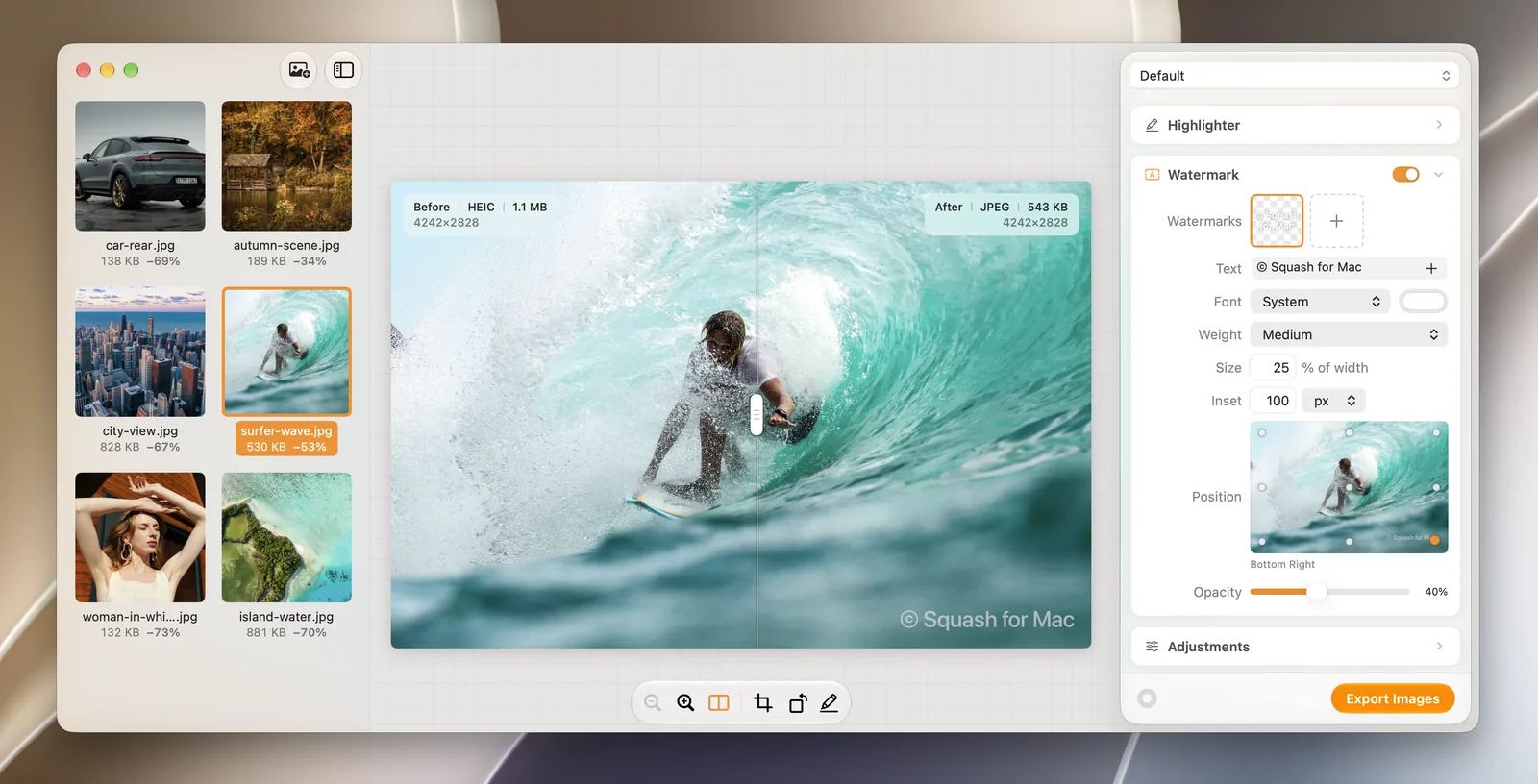
Save it in a preset alongside your export size and format, and every proof set is one click. You can remove the location data in the same pass.
Tips for a good watermark
- Keep it small and see-through. Around 20 to 40 percent opacity protects the photo without spoiling it.
- Use a corner, or the middle for proofs. A corner mark is easy to crop off; a centred one isn’t, but it’s more intrusive.
- Use a PNG logo with transparency, in white or black depending on your photos.
- Watermark copies, not originals. Keep the clean files for prints and paying clients.
Questions about watermarking photos
Can I add a watermark to photos on a Mac for free?
Yes, with Preview’s Markup tools, one photo at a time. Squash is free to download too, with a daily export limit and no watermark of its own.
How do I watermark multiple photos at once on a Mac?
Use an app that applies the same watermark to a batch, such as Squash. Preview and Photos don’t have a batch watermark feature.
Does a watermark stop people stealing photos?
It discourages it and makes sure your name travels with the image, but a determined person can crop or edit it out. Combine it with sharing smaller, web-sized copies.