How to remove metadata and location from photos on a Mac

Dan Counsell · Founder of Realmac SoftwareUpdated
We’ve made Squash, an image compressor for Mac, since 2016, so we show the free way first.
Every photo from a phone or camera carries hidden information called metadata, mostly in a format called EXIF. It usually includes the date and time, the camera and lens, the settings, and, if location was on, the exact GPS coordinates where you took it.
That’s useful in your own library. It’s less welcome in a photo you post publicly or send to a stranger, especially one taken at home.
See what’s in a photo
Open the photo in Preview and choose Tools > Show Inspector. The info tab lists the details, with EXIF and, if there’s a location, GPS sections.
Remove the location from one photo with Preview
- Open the photo in Preview.
- Choose Tools > Show Inspector and click the info tab.
- Click GPS, then Remove Location Info.
- Save the photo.
This removes the location only. The camera details and date stay.
Remove metadata from photos in Photos
When you export from Photos with File > Export > Export Photos, untick the location option in the export window. The exported copies leave it out, and the photos in your library keep it. You can also choose Image > Location > Hide Location for a photo before you share it.
Strip metadata from many photos with a Finder Quick Action
- Select the photos in Finder.
- Control-click and choose Quick Actions > Convert Image.
- Untick Preserve Metadata, choose a format and size, and click Convert.
The new copies have their metadata removed. It’s all or nothing: you can’t keep the date and drop the location.
Choose exactly what to keep with Squash
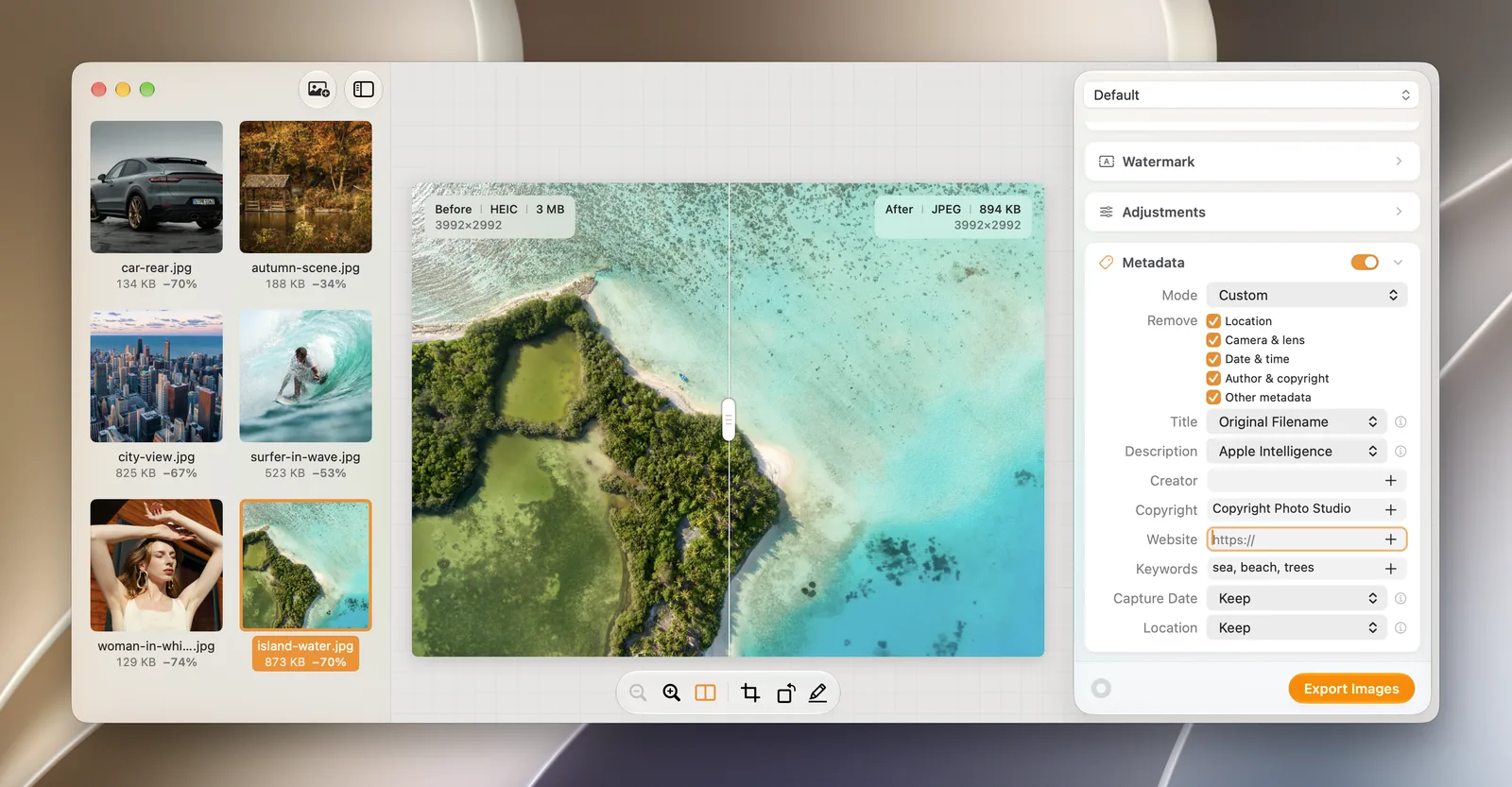
Squash lets you choose which metadata to keep, such as the camera details, and which to drop, such as the GPS location, for a whole batch.
- Drop in the photos.
- Turn on Metadata, set Mode to Custom and tick what to remove.
- Click Export Images. Save the settings as a preset to use every time you share.
You can add a watermark at the same time: see how to watermark photos on a Mac.
Questions about photo metadata
Does posting to social media remove EXIF data?
Most large social networks strip location data from photos they publish, but not every site does, and photos sent by email, message or file transfer keep it. Remove it yourself to be sure.
What is EXIF data?
EXIF (Exchangeable Image File Format) is the standard for storing camera information inside a photo: date, camera, lens, exposure settings and, often, GPS location.
Does converting a photo remove its metadata?
Not always. Preview keeps metadata when you export, and the Convert Image Quick Action keeps it if Preserve Metadata is ticked. Check with Tools > Show Inspector afterwards.
Can I remove metadata on a Mac without an app?
Yes. Preview removes the location from one photo, and the Convert Image Quick Action with Preserve Metadata unticked strips everything from a batch.